
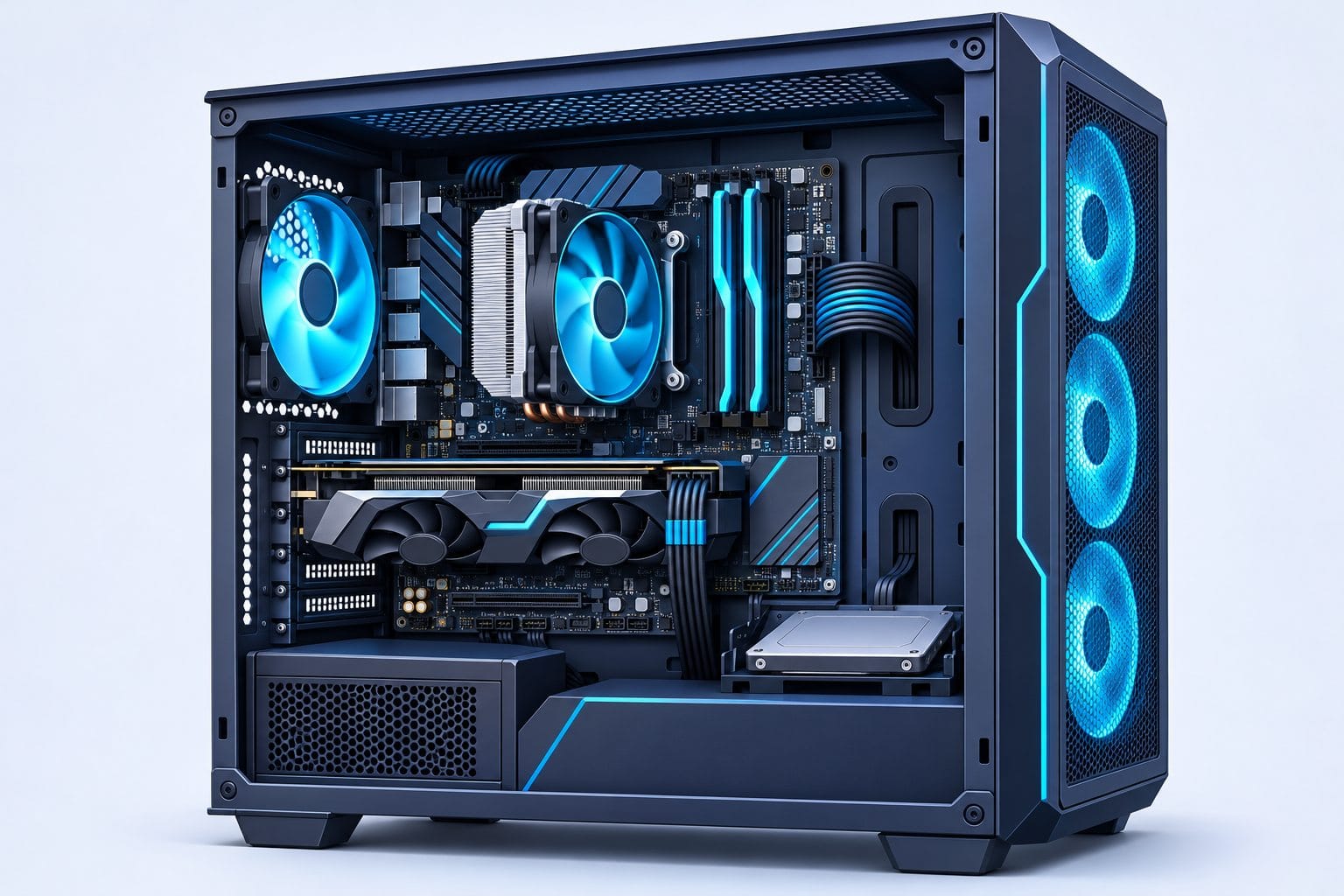
A slow computer can make it tempting to replace the first part you recognize. But a faster CPU will not fix every slowdown, and more RAM will not help if storage or cooling is the real problem. This guide explains what each major computer component does, how the parts work together, and what to check before spending money on an upgrade.
The guide covers desktops and laptops, with one important distinction throughout. Desktop parts are often replaceable. Laptop components may be soldered, proprietary, or difficult to access.
Key takeaway
The best hardware upgrade depends on what is slowing your computer down. Check the bottleneck, compatibility, power requirements, and cooling before buying a new part.
What is computer hardware?
Computer hardware is the physical equipment that makes a computer work. It includes the processor, memory, storage, motherboard, graphics hardware, power supply, cooling system, display, keyboard, and other devices you can touch. Software gives the machine instructions. Hardware carries them out.
Think of a photo-editing session. The file lives on a drive, moves into RAM when opened, and is processed by the CPU and sometimes the GPU. The display shows the result. If the drive is nearly full, RAM is insufficient, or the processor is overwhelmed, the same task can feel slow for different reasons. That is why identifying the bottleneck matters more than buying the most expensive part.
New to the basics? Our What Is Computer Hardware guide follows a simple photo-editing task to show how the physical parts work together and how hardware differs from software.
The essential computer parts at a glance
| Part | What it does | What to consider |
|---|---|---|
| CPU | Runs general instructions and coordinates work | Performance in the apps you use, platform compatibility, power and heat |
| GPU | Processes graphics and some parallel computing tasks | Integrated or dedicated graphics, application needs, power and memory |
| RAM | Holds data that active programs need quickly | Capacity first, then supported type and speed |
| Storage | Keeps the operating system, apps, and files when power is off | SSD or HDD, capacity, interface, physical fit and backup plan |
| Motherboard | Connects components and determines many upgrade options | CPU support, memory support, slots, ports and firmware |
| Power supply | Converts wall power for a desktop PC | Appropriate capacity, connectors, protections and build quality |
| Cooling | Moves heat away from components | Thermal capacity, noise, case clearance and airflow |
No row in that table is a scorecard. A balanced PC is one whose parts suit the same workload and work together reliably.
How the CPU and GPU divide the work
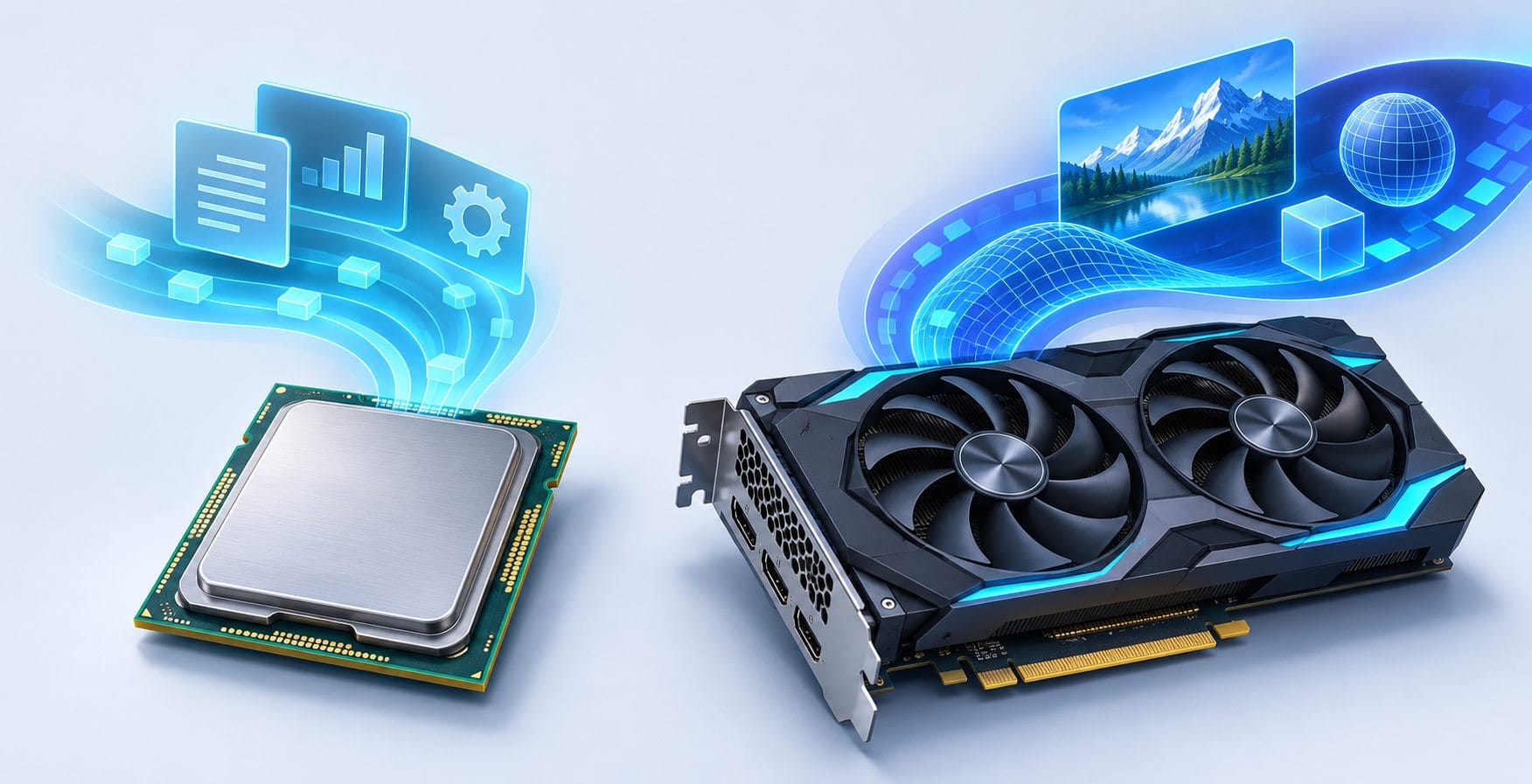
The central processing unit, or CPU, handles a wide range of instructions. It matters when opening applications, calculating spreadsheets, compiling code, running game logic, and juggling background tasks. A CPU core is a physical processing engine. A thread is a stream of work the processor can schedule. Some processors can run more than one thread per core, but two threads are not the same as two complete cores. Clock speed, core count, architecture, cache, cooling, and the specific application all affect performance. Comparing one number in isolation can mislead you.
See how a CPU processes instructions for the basic workflow, then read our core and thread comparison to interpret processor specifications.
The graphics processing unit, or GPU, is designed for work that can be done in parallel, especially rendering images and video. Some software also uses a GPU for creative or computational tasks. An integrated GPU shares the system’s memory and power budget, while a dedicated GPU is a separate device with its own graphics memory. Integrated graphics can be an efficient choice for browsing, office work, streaming, and some light creative tasks. A dedicated GPU may be worthwhile for demanding games, 3D work, or applications that explicitly benefit from one. Intel’s CPU and GPU explainer and its integrated versus discrete graphics guide describe these differences.
When comparing Intel Core and AMD Ryzen processors, begin with the applications you use and independent results for the exact models under consideration. A brand name or family label alone cannot tell you which chip is the better buy. Our Intel Core vs AMD Ryzen comparison shows how to assess exact models for gaming, work, laptops, and desktops. Also check whether your chosen processor has the graphics capability you need.
RAM keeps active work within reach
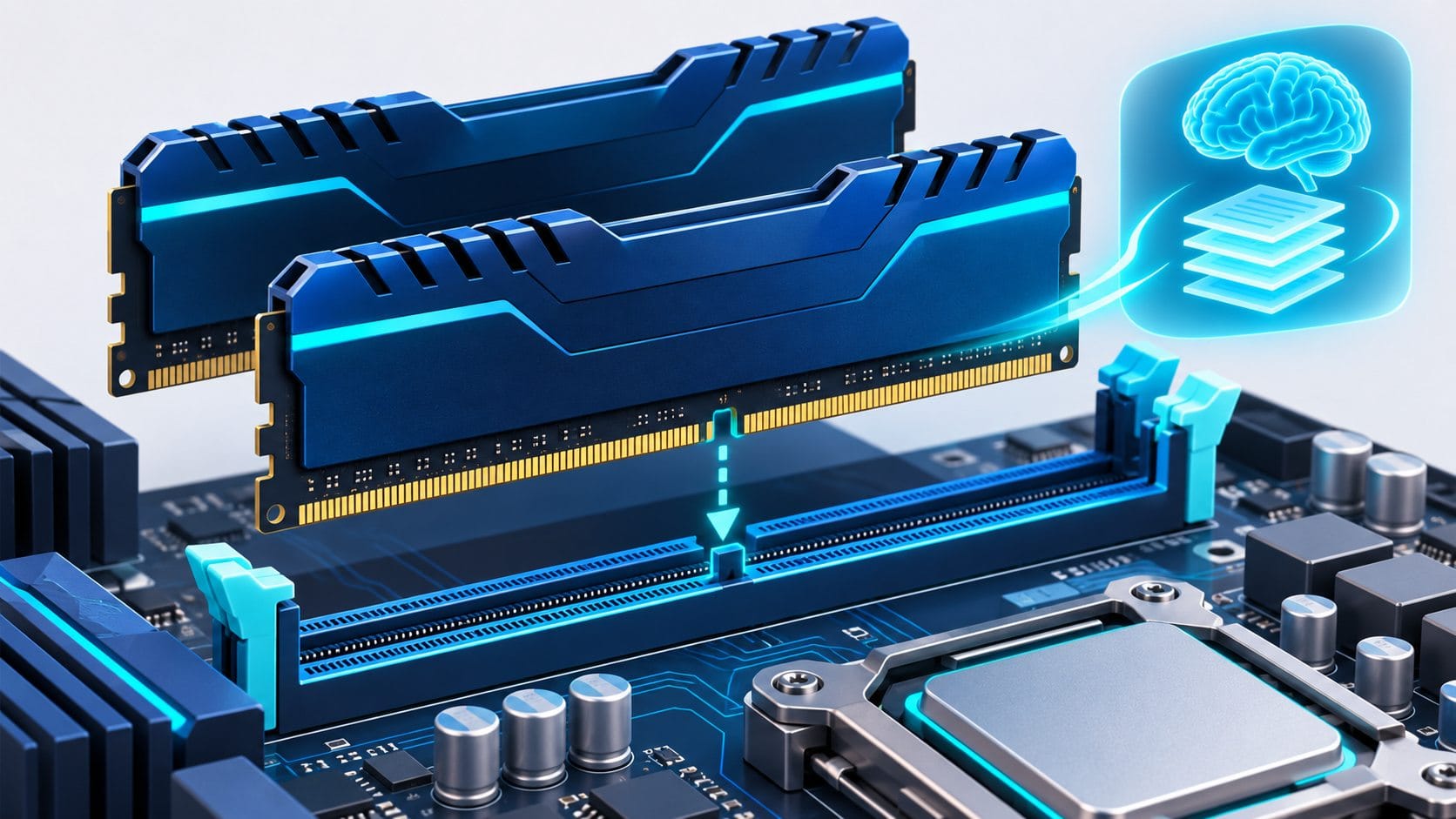
Random access memory, or RAM, is the short-term workspace for open applications and files. Storage keeps data after shutdown; RAM does not. When your workload exceeds available memory, the computer may rely more heavily on storage and feel less responsive.
Start with capacity rather than chasing the largest speed number. A person using a browser and office apps has different needs from someone editing large video projects or running virtual machines. To decide whether more RAM will help, observe memory use during your normal workload. If it regularly approaches the installed capacity and the system slows down while switching tasks, an upgrade may be worthwhile. If memory use stays comfortably below capacity, another component may be the limitation.
DDR4 and DDR5 are different memory generations. They are not interchangeable in a motherboard slot. Desktop and laptop modules also use different physical formats. Before ordering RAM, verify the computer or motherboard’s supported generation, module format, maximum capacity, slot availability, and any manufacturer compatibility guidance. Kingston’s DDR4 and DDR5 guide explains the platform differences.
Storage changes both space and responsiveness
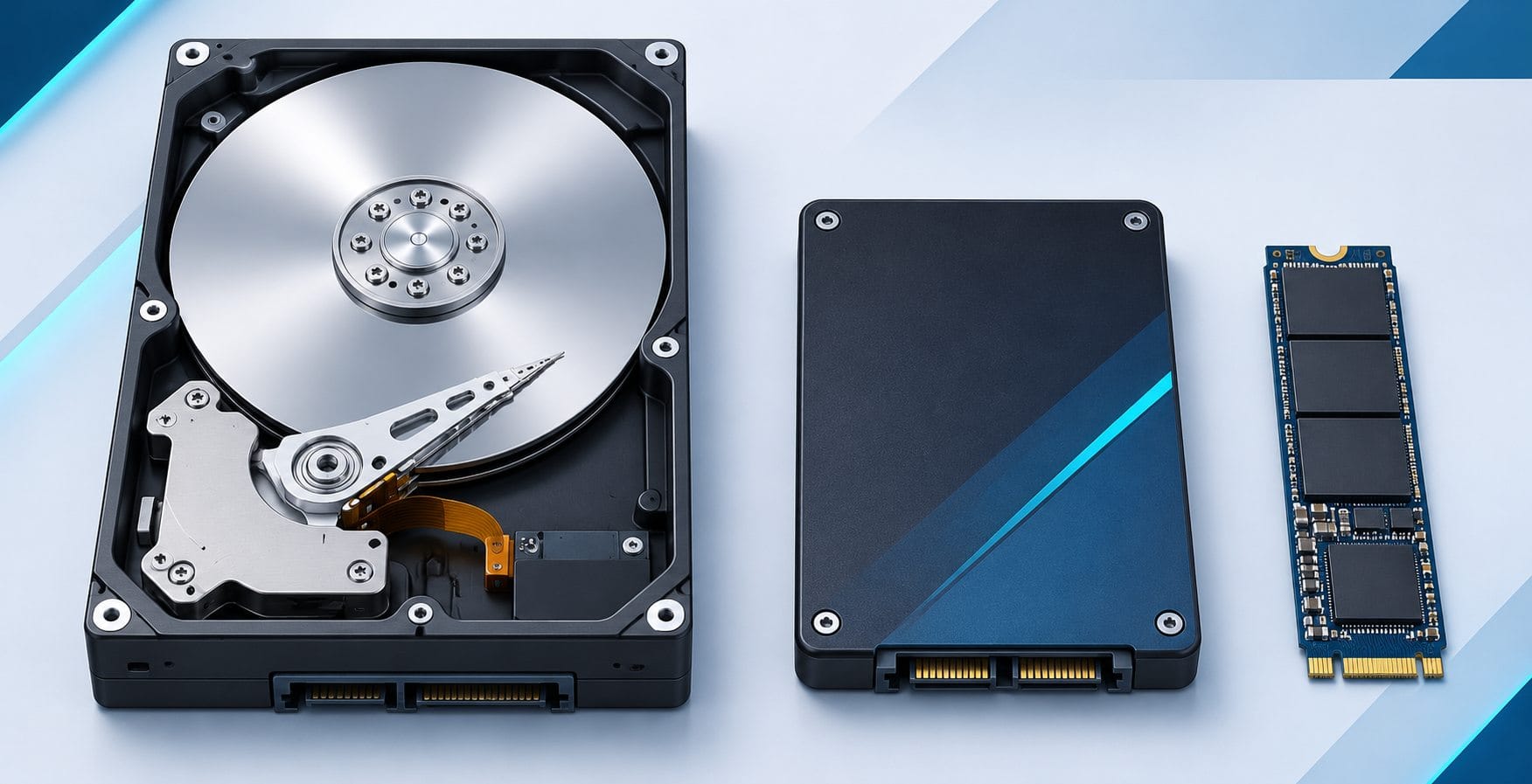
A hard disk drive, or HDD, stores data on spinning platters. A solid-state drive, or SSD, uses flash memory and has no moving platters. Replacing an HDD that holds the operating system with a compatible SSD can make everyday tasks feel more responsive. An HDD can still be useful when you need substantial storage at a lower cost per gigabyte. Neither replaces a backup.
Among SSDs, the names can be confusing. SATA describes an interface used by many 2.5-inch SSDs. NVMe is a storage protocol commonly used over PCI Express. M.2 describes a physical form factor, not a guarantee that a drive uses NVMe. Check both the drive and the slot specifications before buying. Kingston’s SSD FAQ explains the interface distinctions.
PCIe generations set different bandwidth ceilings. PCI-SIG states that PCIe 5.0 doubles the maximum bit rate of PCIe 4.0, but a higher interface ceiling does not mean every task will feel twice as fast. The drive, motherboard, thermals, and workload all matter. For a typical user, enough capacity and a compatible SSD can be more valuable than paying extra for a headline speed that their work rarely uses. See the PCI-SIG FAQ for the underlying interface specifications.
The motherboard determines what fits
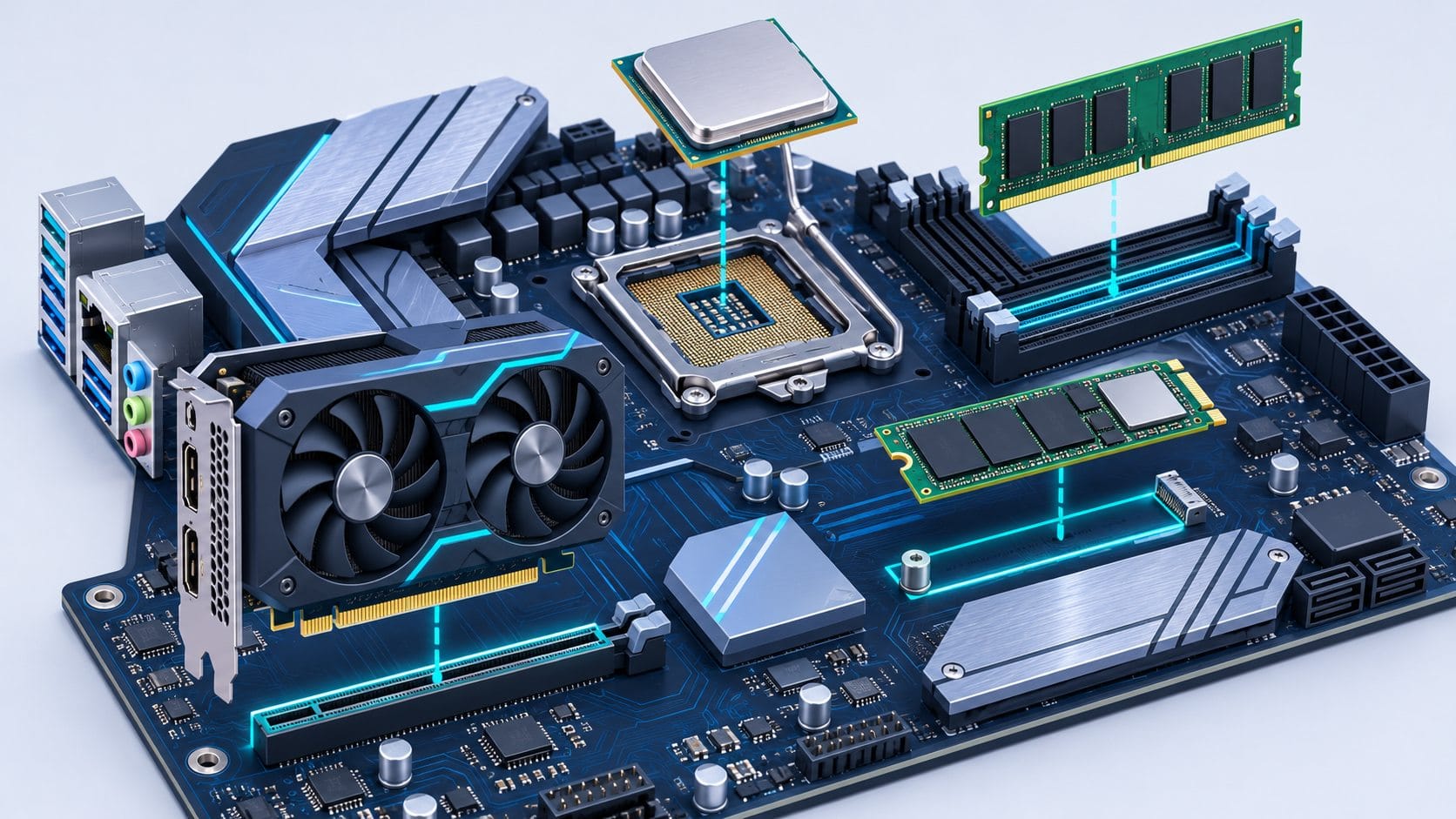
The motherboard connects the CPU, RAM, storage, graphics card, and other devices. It also sets practical limits through its CPU socket, chipset, memory slots, expansion slots, ports, and firmware support.
A matching CPU socket is necessary, but it may not be sufficient. A motherboard can require a particular BIOS version before it supports a processor. The safest approach is to check the board maker’s CPU support list for your exact model and revision, then verify the required firmware version. AMD also advises checking the motherboard maker’s CPU support list, memory compatibility list, and BIOS guidance before upgrading. AMD’s processor support guidance highlights those checks.
The same caution applies to memory and storage. A board may have an M.2 slot that supports one type of drive but not another, or a slot that shares resources with other connectors. Read the manual for the specific board rather than assuming that a connector’s shape tells the whole story.
Power and cooling protect the rest of the build
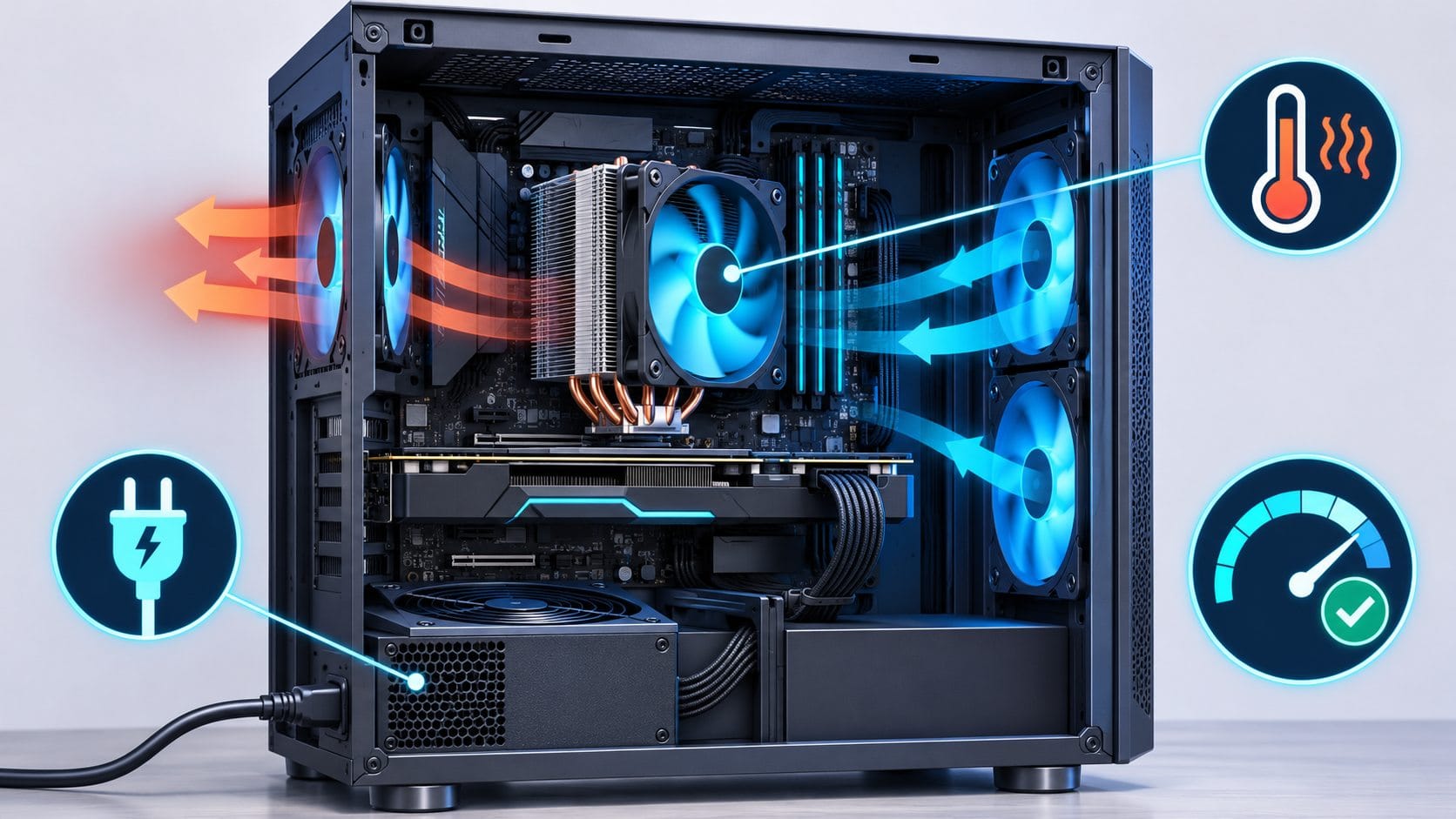
A desktop power supply unit, or PSU, must provide adequate power and the right connectors for the whole system. Leave room for the manufacturer’s recommended power requirements and any realistic upgrades. Efficiency labels are useful, but they answer a narrow question. The 80 PLUS program certifies power conversion efficiency under defined tests. It does not, by itself, tell you everything about a unit’s electrical protections, reliability, noise, or warranty.
Cooling is equally practical. A processor that cannot shed heat may reduce speed to protect itself, a behavior called thermal throttling. Intel’s temperature guidance notes that thermal protection can reduce processor frequency and power. Good airflow, a properly fitted cooler, and clean vents matter more than simply choosing liquid cooling because it sounds advanced. Air and liquid coolers each have tradeoffs in cost, noise, installation, and maintenance. Intel’s cooling comparison gives a useful overview.
Choose parts for the work you actually do
Before comparing specifications, write down the tasks that cause problems today. Then decide whether you are buying a new computer or improving one you already own.
- Everyday browsing and schoolwork — Favor a responsive SSD, enough RAM for your usual number of apps and tabs, a comfortable display, and good battery life if you are buying a laptop. A high-end graphics card is rarely the first priority.
- Gaming — Check the games you play, the resolution and refresh rate of your monitor, and whether the CPU and GPU are reasonably balanced. A powerful GPU is less useful if the rest of the system cannot support it.
- Photo, video, and 3D work — Check the requirements of your actual software. Large projects may benefit from more memory and storage, while rendering or effects may benefit from a suitable CPU or GPU.
- Programming and virtual machines — Look at the size of your projects and how many environments you run at once. Memory capacity, processor performance, and fast storage may all matter.
These are priorities, not universal shopping lists. Two people who both “edit video” may need very different machines if one trims short clips and the other works with large, complex projects.
Check compatibility before you pay
A few minutes with the system manual can prevent a costly return. Use this checklist for an upgrade or desktop build.
- Identify the exact computer or motherboard model. Model families can contain different revisions and configurations.
- Check the CPU support list and BIOS version. Confirm the specific processor model, not only its socket.
- Verify memory generation, form factor, capacity limit, and free slots. Laptop memory may be soldered and impossible to replace.
- Confirm the drive interface and physical dimensions. An M.2 slot and an M.2 drive are not automatically compatible.
- Check power and space. A desktop graphics card or cooler must fit the case and have the required power connectors.
- Plan for your data. Back up important files before replacing a drive or making a major hardware change.
For a laptop, consult its service manual or manufacturer support page before buying an internal component. Upgrade access varies greatly by model, and opening the machine may involve model-specific procedures.
Find the bottleneck before upgrading
On Windows, open Settings, then System, then About to see basic processor and RAM details. System Information provides more hardware details, and Task Manager’s Performance tab shows live CPU, memory, disk, and GPU activity. Microsoft documents these options in its PC specifications guide.
Now reproduce the problem. If the system slows only when many apps are open and memory use is consistently high, RAM may be the constraint. If startup and file operations are sluggish on a machine with an HDD, an SSD may help. If performance drops after sustained heavy work, inspect cooling and temperatures. If a game struggles, check the GPU and CPU activity along with the game’s settings. Resource graphs are clues, not a diagnosis on their own. Drivers, software, insufficient free space, and background processes can produce similar symptoms.
Upgrade one problem at a time. Record what changed and whether it improved the task you care about. That simple habit makes future decisions easier and keeps you from paying for upgrades that only look impressive on paper.
Common computer hardware questions
Is more RAM always better?
Only when your workload needs it. More capacity can prevent slowdowns from memory pressure, but unused RAM will not automatically make every application faster. Confirm compatibility before purchasing.
Do I need a dedicated graphics card?
Not necessarily. Integrated graphics can handle many everyday tasks. Check the requirements and real-world performance of the games or applications you use before paying for a dedicated GPU.
Is an NVMe SSD worth it over a SATA SSD?
NVMe drives can offer much higher throughput, but the benefit depends on the task and the rest of the computer. If you are moving from an HDD, either compatible SSD type can be a meaningful improvement. If you already have a SATA SSD, compare the cost of upgrading with the performance needs of your actual applications.
Can I upgrade any laptop?
No. Some laptops allow a storage or memory upgrade, while others have soldered memory or limited access. Check the exact model’s service documentation before buying a part.
Make the next hardware decision with confidence
Start with the task, find the limitation, then verify compatibility. A computer hardware guide should help you ask better questions, not push you toward the most expensive specification. Whether you are choosing a laptop, building a desktop, or reviving an older PC, the best hardware is the hardware that fits your work, your machine, and your budget.
