
A keyboard stops responding just as you are finishing a report. You can still see the document on screen, but you cannot type another word. Is the computer broken? The answer depends on which part of the system has stopped doing its job.
Computer hardware is easier to understand when you group parts by what they do. Some devices send information in. Others process it, keep it, show it, or move it between machines. That framework explains far more than a long list of product names. It also helps you recognize why a slow computer, a failed printer, and a dropped connection call for different fixes.
This guide walks through the main types of computer hardware, the parts inside and outside a PC, and a simple workflow that shows how they cooperate. You will also learn what to check before choosing a replacement or upgrade.
Key takeaway
Think of computer hardware by function. Input devices collect information, processing components work on it, storage keeps it, output devices present it, and communication hardware moves it across a network. A single device can serve more than one function.
What Is Computer Hardware?
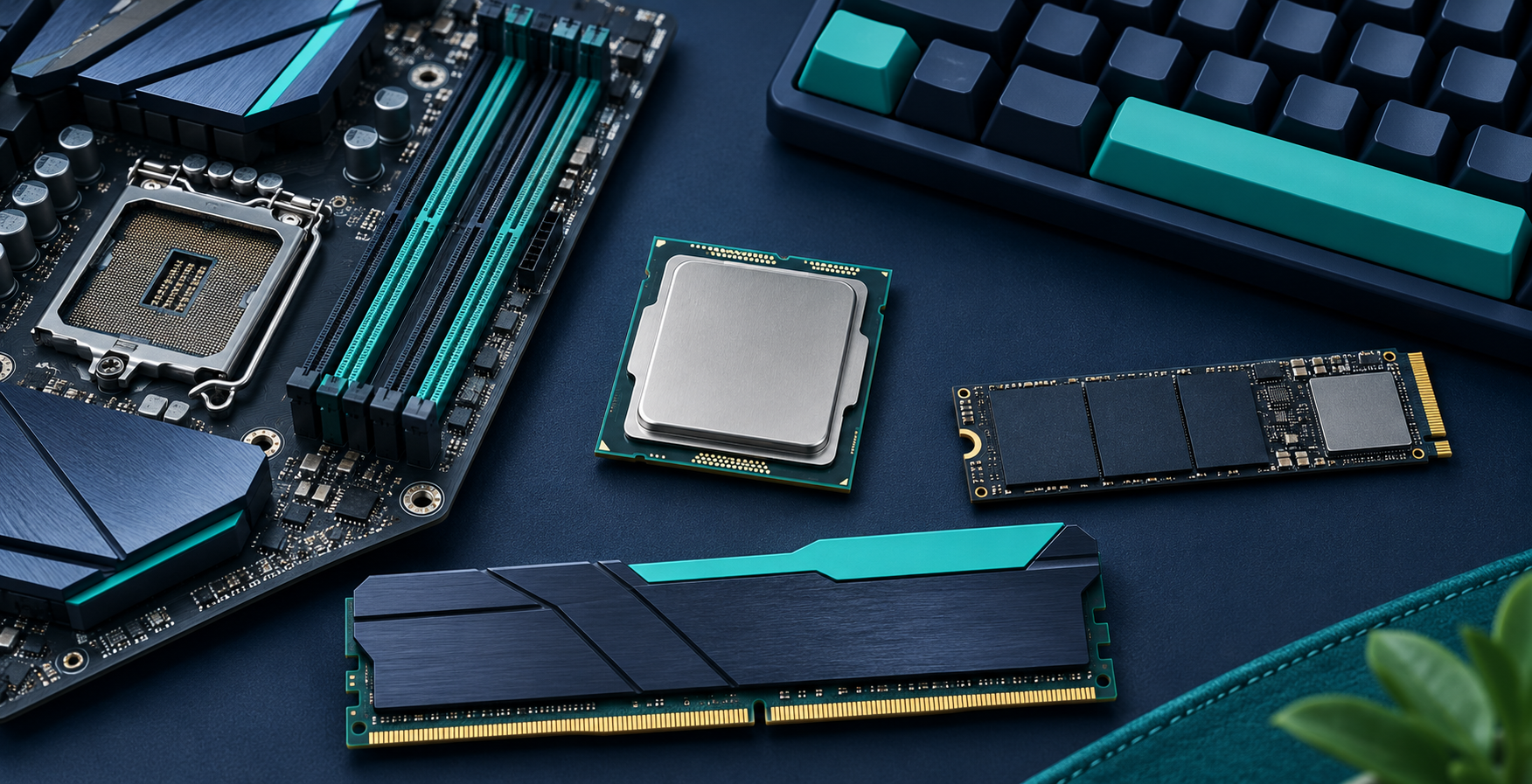
Computer hardware is the physical equipment in a computer system. It includes the parts you handle, such as a mouse or monitor, and the parts you may never see, such as a processor, memory chip, or network adapter inside a laptop. Hardware receives signals, carries out operations, holds information, and delivers results. IBM’s hardware overview describes the same core jobs as input, output, processing, and storage.
Physical does not mean simple or easy to replace. A laptop’s memory may be soldered to its board. A graphics processor may be built into another chip. Both are still hardware. Conversely, a photo file is data, and the editing program that opens it is software, even though both depend on physical storage and processing devices.
If you want a slower walk through the basic definition and the difference between hardware and software, start with our What Is Computer Hardware guide. Here, the focus is on the categories and the work each part performs.
What Are the Main Types of Computer Hardware?
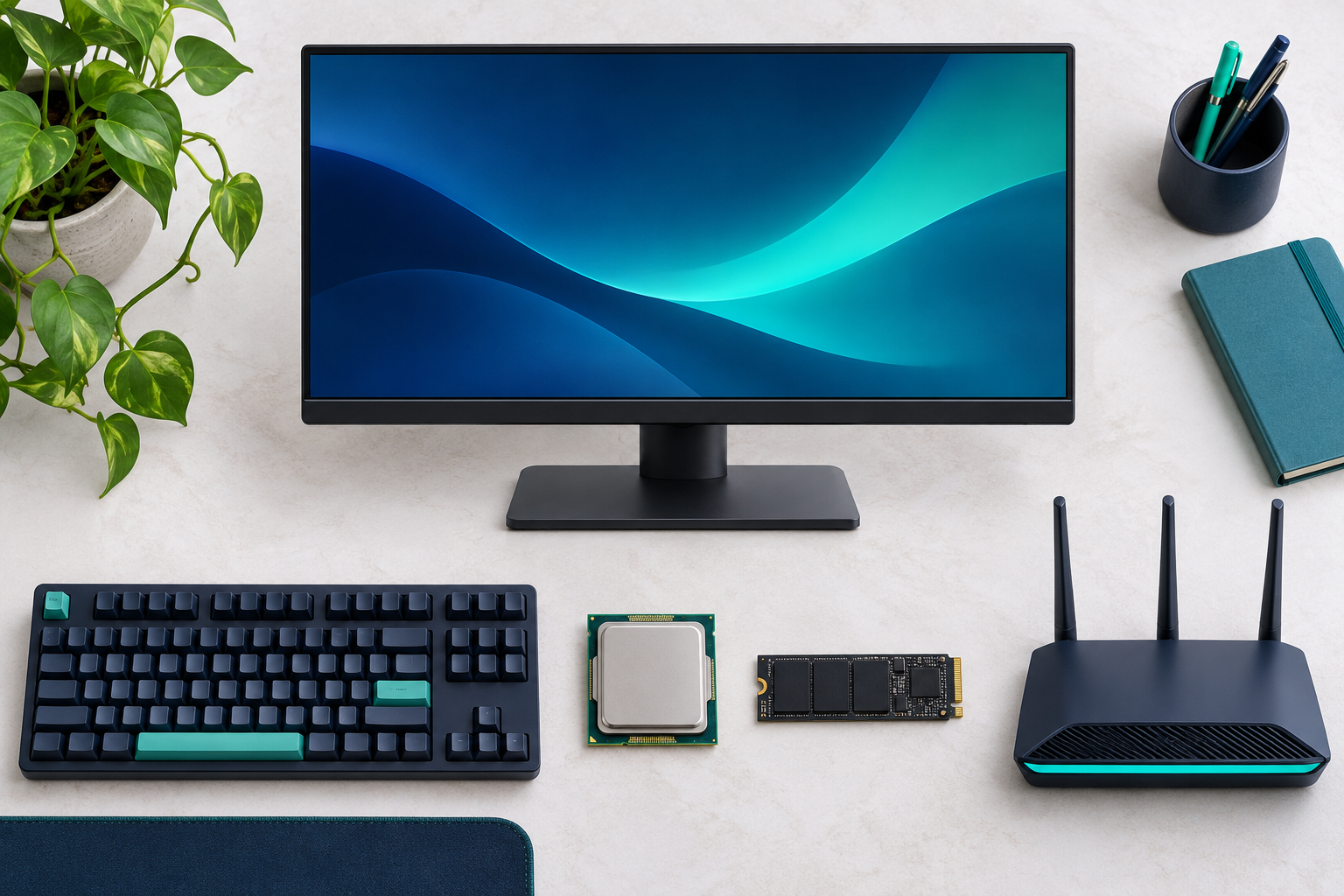
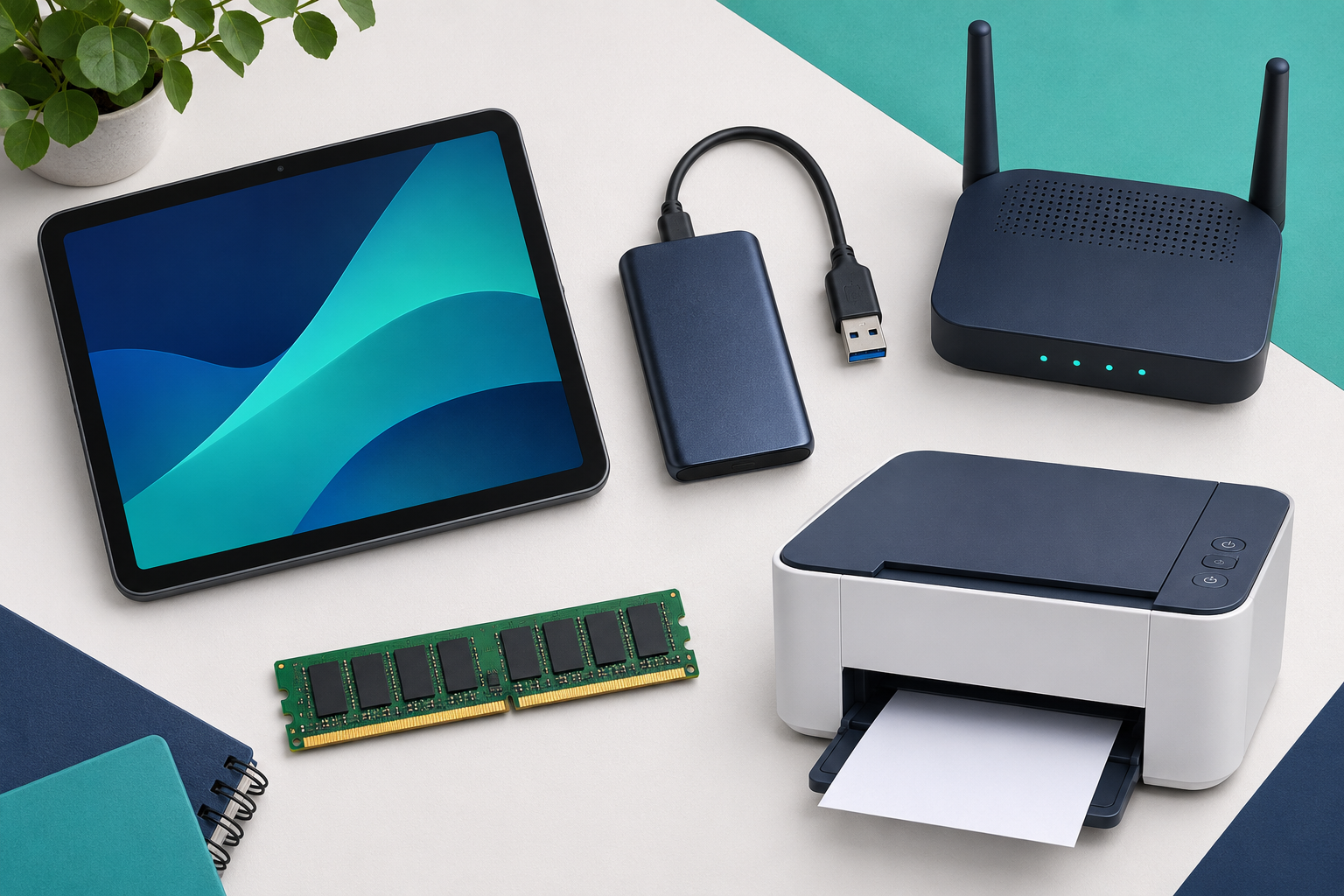
Five practical categories are input, output, processing, storage, and communication. They describe jobs rather than fixed locations. A device can sit inside or outside the computer, and some devices belong in more than one category. RAM deserves special attention because it holds active working data rather than keeping files after shutdown.
Input Devices
Input devices turn your actions or surroundings into signals a computer can use. A keyboard sends key presses. A mouse or trackpad reports movement and clicks. A scanner turns a paper page into digital image data. A microphone captures sound, while a webcam captures images. On a touchscreen, the glass you tap is an input surface even as the same assembly shows output.
The important question is what information the device collects. A barcode scanner at a store and a graphics tablet on an artist’s desk look different, but both send input to software. If the computer runs normally yet fails to respond to one device, check that device, its connection, settings, and drivers before assuming the CPU has failed.
Output Devices
Output devices make the computer’s results available to you. A monitor turns digital display signals into visible images. Speakers or headphones turn audio signals into sound. A printer places text or images onto paper. A projector gives a room a larger view of the same visual output.
Output is not always a final step. A display updates while you edit a document, play a game, or follow directions. A printer can also report status back to the computer. The label tells you its main role, not everything the device is capable of. When there is no picture or sound, the problem could be in the output device, cable, port, settings, or the hardware producing the signal.
Processing Devices
Processing hardware carries out instructions and transforms data. The central processing unit, or CPU, handles a broad range of tasks, from opening an app to coordinating work in the background. A graphics processing unit, or GPU, is suited to drawing images and other workloads that can be handled in parallel. It may be integrated into a processor or provided as a separate chip or card.
Neither part works alone. Software determines the task, RAM holds data the system is using, and storage supplies files and programs. A fast CPU will not make an unresponsive keyboard work, and a powerful GPU will not fix a network outage. If you are comparing processors for a purchase, use results for the applications you actually run rather than a single headline specification.
For a closer look at processor specifications, see our CPU cores and threads explanation.
Storage Devices
Storage devices keep information for later use. A hard disk drive, or HDD, uses spinning magnetic disks. A solid-state drive, or SSD, stores data in flash memory. A USB flash drive and an external SSD provide portable storage. These devices can hold the operating system, applications, photos, and documents after the computer is switched off.
Storage is different from RAM. RAM is a fast workspace for active tasks and normally loses its working contents when power is removed. A storage drive keeps files for the next session. This distinction explains why adding drive capacity does not automatically solve a shortage of RAM. It also explains why a storage drive, however reliable, is not a complete backup plan. Important files need a separate copy.
Communication Devices
Communication hardware moves data between computers and networks. A network interface card or built-in network adapter gives a computer a wired or wireless connection. A router directs traffic between networks and commonly connects devices on a local network. A modem connects to an internet service through the access technology provided by the service. Some home devices combine these roles in one box.
These parts matter even when the computer itself feels fast. A video call can stutter because of the wireless connection, the router, or the internet link while the CPU and storage are working normally. Cisco’s router explanation distinguishes routing from the modem’s connection to an internet provider. Check which link is failing before replacing computer parts.
A useful way to test the categories is to ask what would change if a part disappeared. Without input, the system cannot receive your instructions. Without processing, it cannot act on them. Without persistent storage, it cannot keep your files. Without output, you cannot see or hear the result. Without communication hardware, local tasks may still work, but connected ones can fail. This thought experiment makes the five groups easier to remember than a list of product names.
Internal Computer Hardware Components
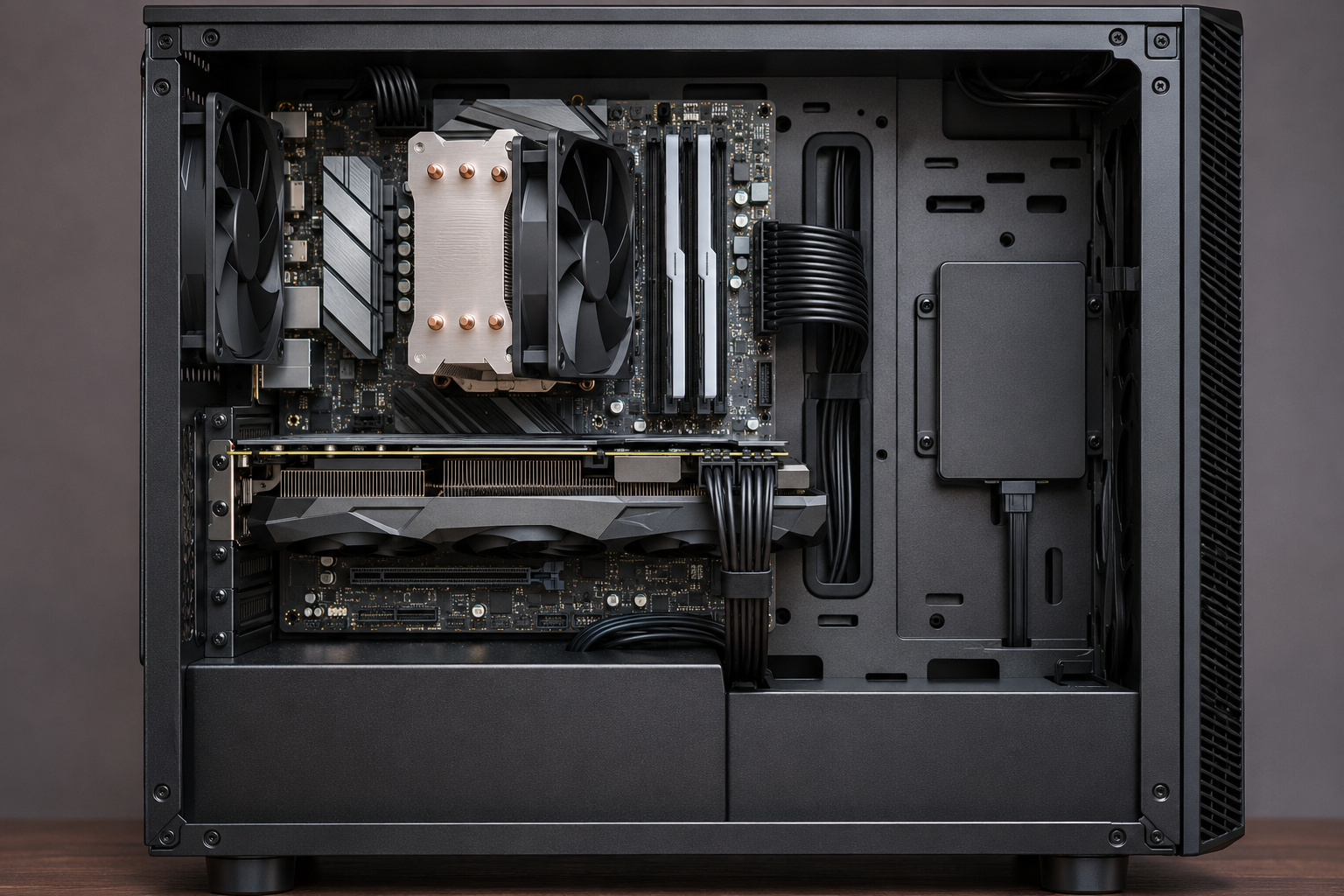
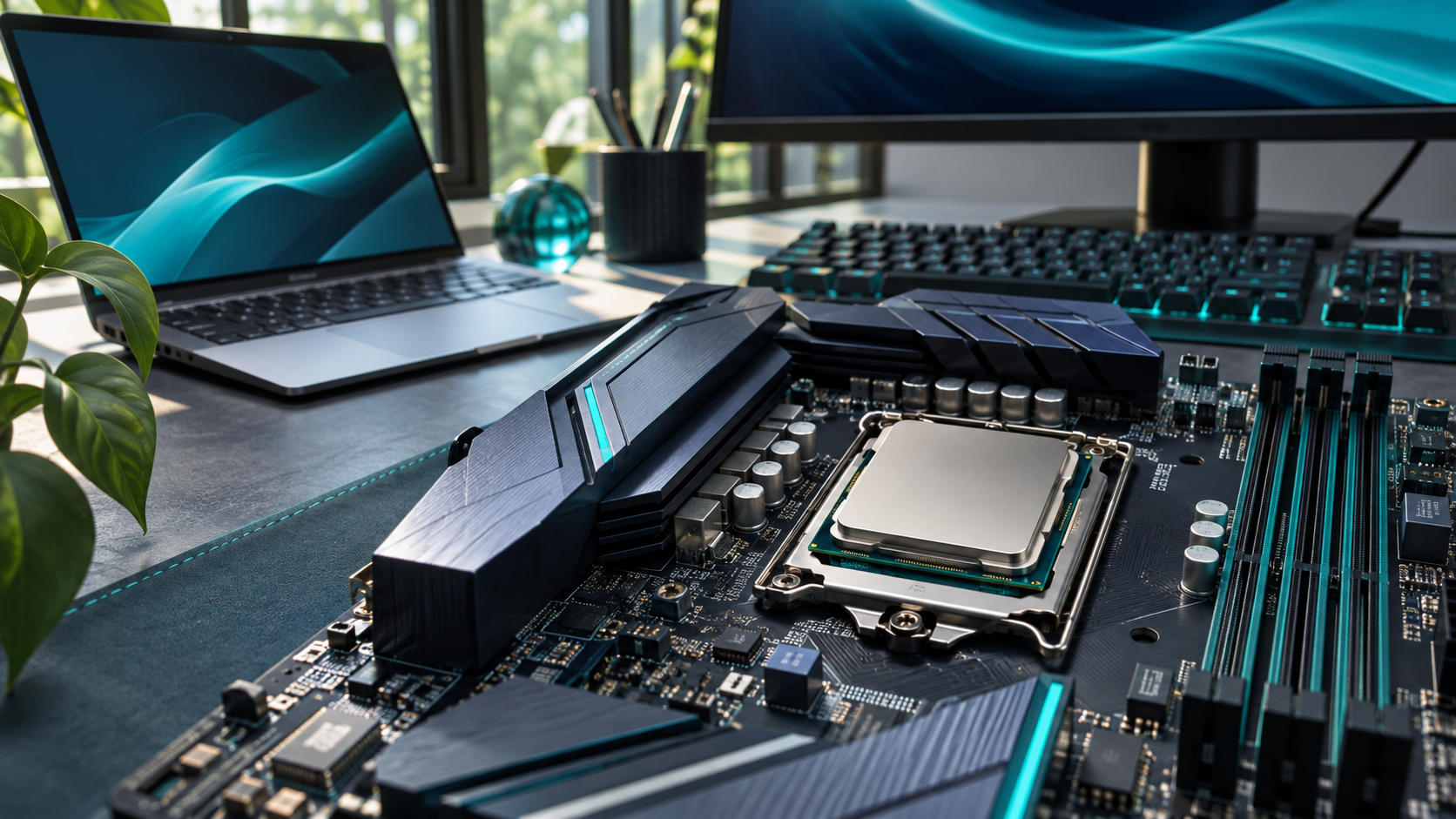
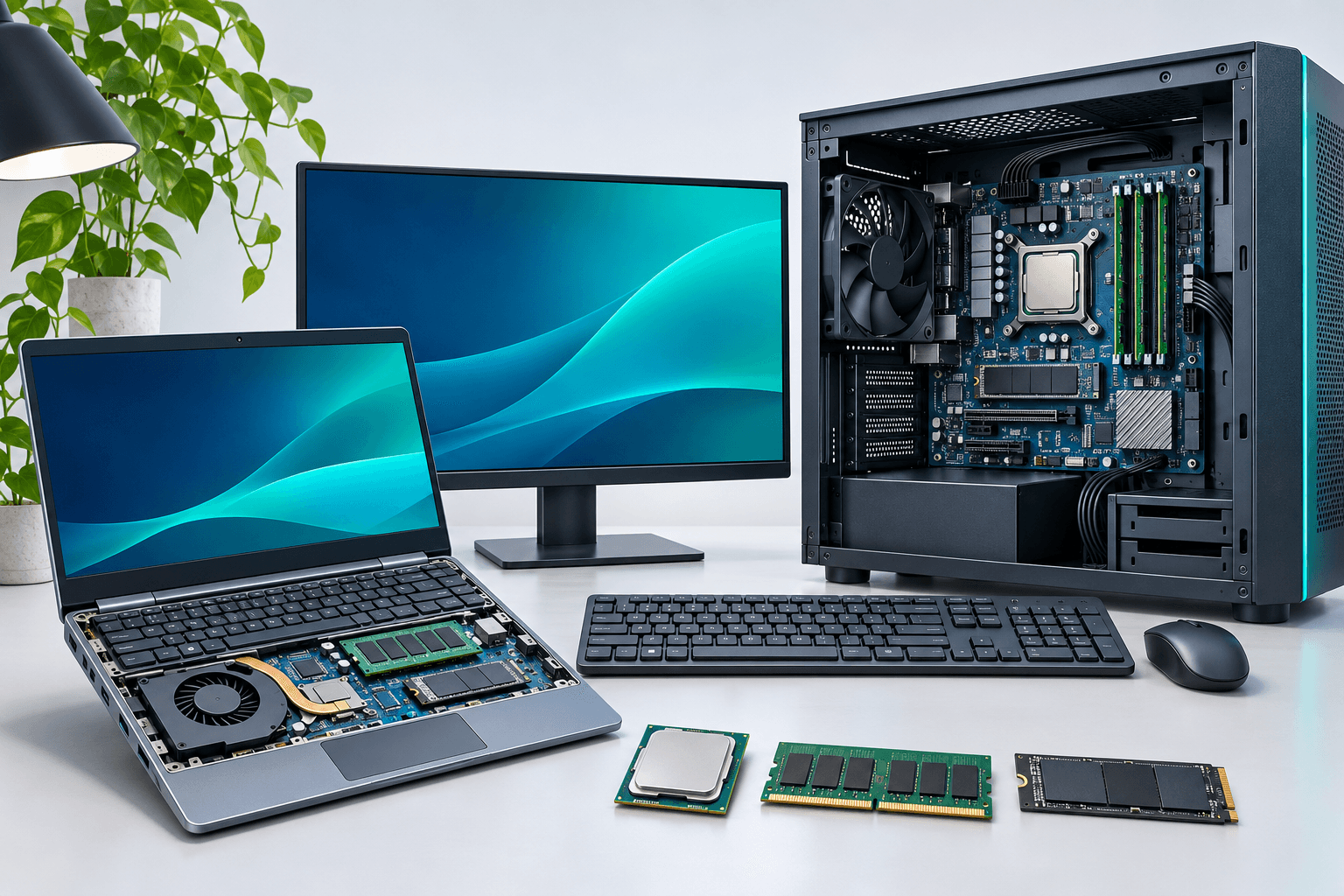
Inside a desktop or laptop, several components share the work that makes the machine usable. The motherboard connects major parts and provides paths for data and power. The CPU executes instructions and coordinates general computing tasks. RAM keeps information close at hand while programs are running. An SSD or HDD stores files and installed software between sessions. A GPU produces graphics, whether it sits on a separate card or shares a chip with the CPU.
Power and temperature matter too. A desktop power supply converts wall power into the electrical output its components need. A laptop uses a charger, battery, and internal power circuitry. Fans, heat sinks, and sometimes liquid cooling move heat away from busy chips. Without adequate cooling, a system may slow down or shut off to protect itself.
Not every computer contains these parts in the same form. A compact laptop may have memory soldered in place, limited drive slots, and no separate graphics card. A desktop may offer several expansion slots and removable components. Before planning an upgrade, identify your exact model and check its service manual or manufacturer specifications. A familiar component name does not guarantee it can be replaced in your particular machine.
The network adapter is another internal part that is easy to overlook. It connects the computer through Ethernet or Wi-Fi. Storage, memory, graphics, and connectivity all depend on the motherboard and operating system to coordinate their work, but they solve different problems. Knowing those roles gives you a useful starting point when a machine runs slowly, runs out of space, overheats, or loses its connection.
In many desktops, the CPU and RAM occupy sockets or slots on the motherboard, but their replaceability depends on the design. In laptops, even an accessible cover does not guarantee an upgrade path. Check documentation before buying a part, and back up important data before changing storage.
External Computer Hardware Devices
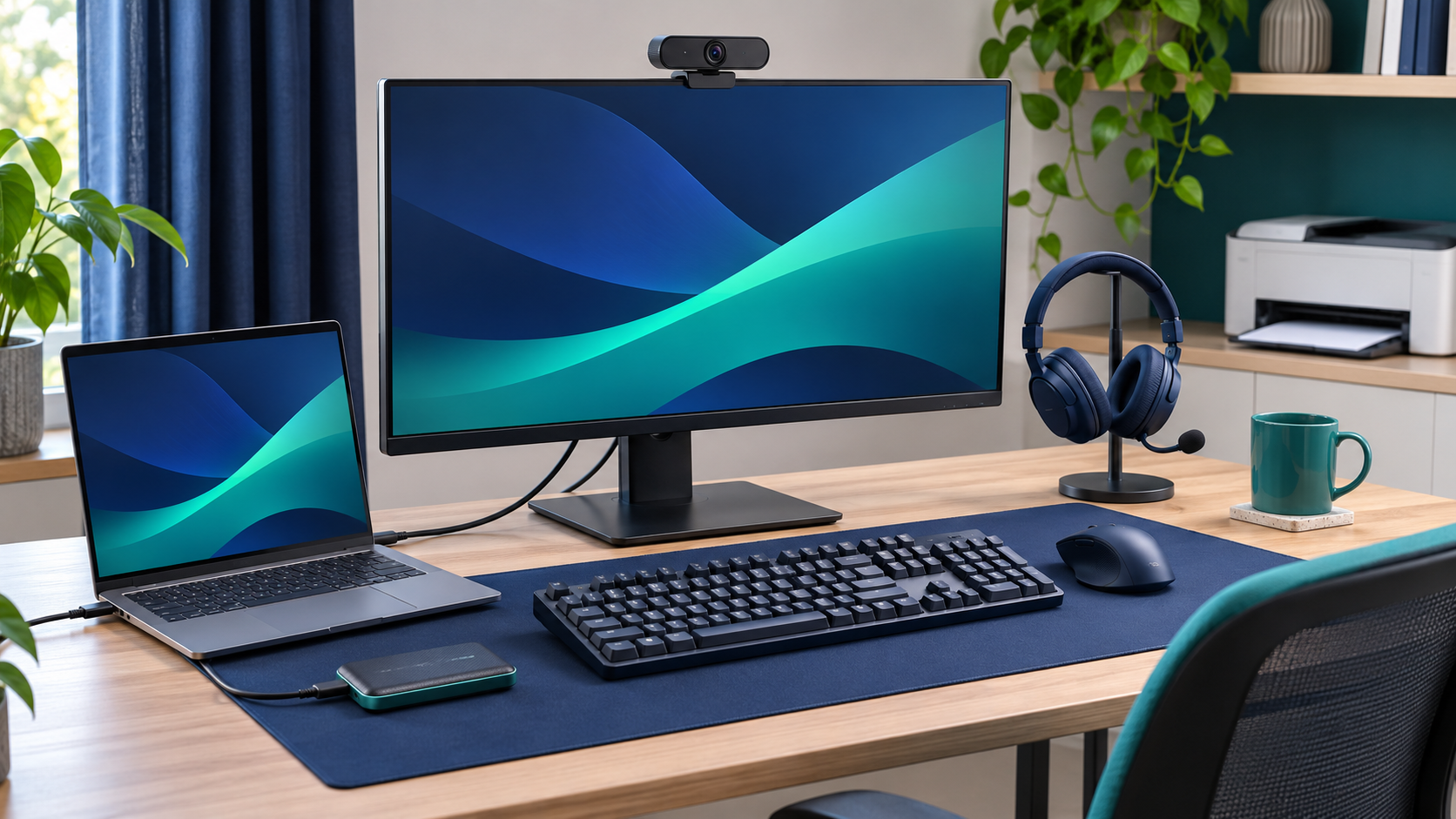
External hardware connects to a computer without being built into its main enclosure. A keyboard, mouse, monitor, webcam, microphone, and speakers are familiar examples. External drives, printers, docking stations, and USB hubs can add capacity or connections without opening the computer. Some devices use a cable; others connect wirelessly.
External does not mean less important. A laptop can function without an extra monitor, yet that monitor may be the reason a home workstation is comfortable to use. An external SSD can hold a large project library, while an external backup drive can protect a separate copy of important files. A headset can improve a video call even though it does not increase computing speed.
Check more than the shape of a connector before you buy. A USB-C port can support different data speeds and display or charging features, depending on the computer. A monitor needs a compatible video connection and a computer that supports the desired resolution and refresh rate. Wireless devices need the right receiver, Bluetooth support, or network setup. The manufacturer’s compatibility information is more reliable than assuming that matching plugs provide matching capabilities.
When adding peripherals, think about desk space, cable routing, and power as well as specifications. A useful device should fit the way you work, not merely offer a longer feature list.
Computer Hardware and Their Functions
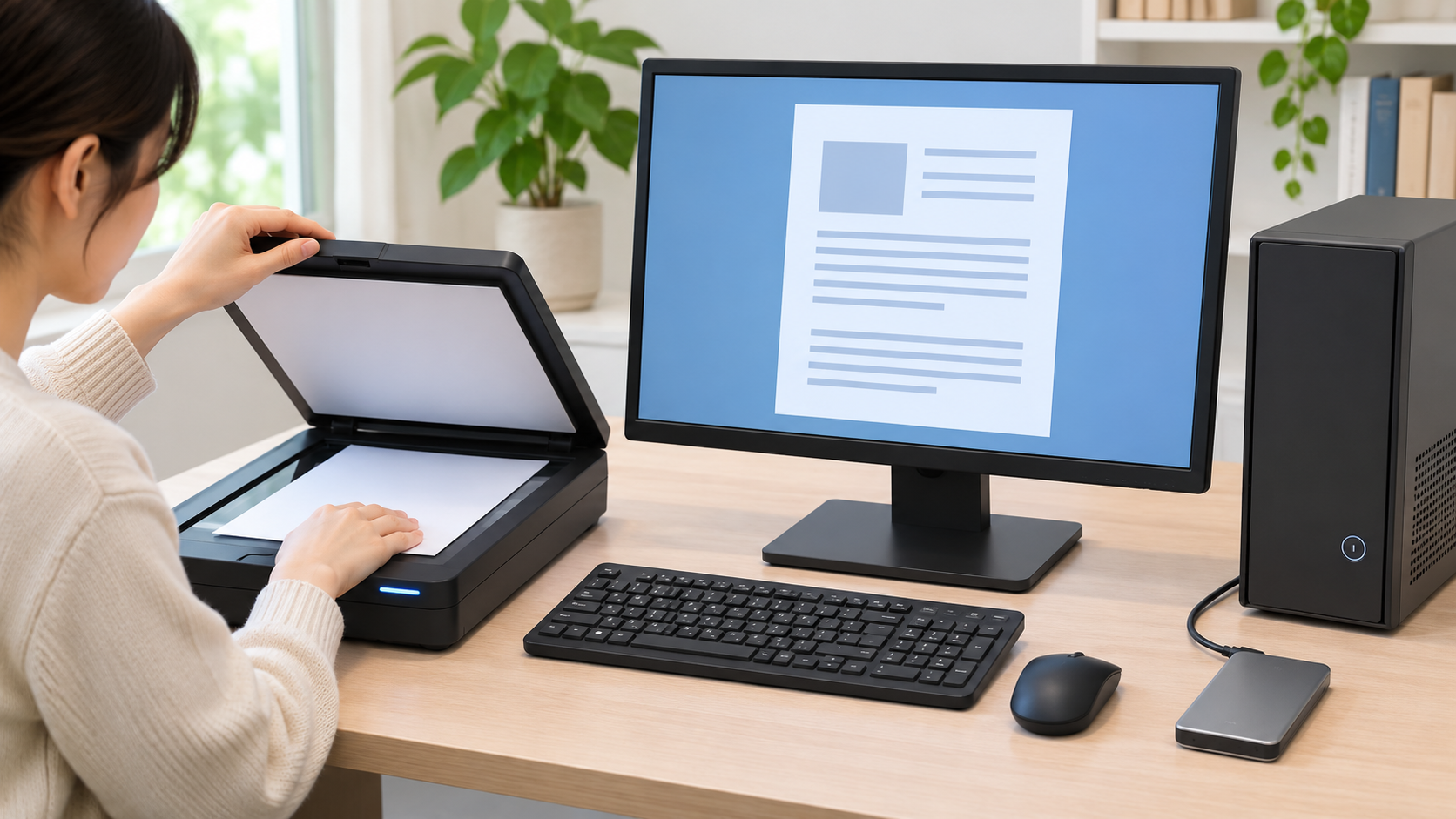
The simplest way to remember hardware functions is to follow the information. Input devices collect it. Processing components transform it. RAM holds the part currently in use. Storage devices preserve files and programs. Output devices present the result. Communication devices move information to or from another machine.
Consider a scanned form. The scanner captures the page. The CPU and software process the image. RAM holds working data while the file is open. An SSD saves the finished copy. A monitor shows it, and a network adapter sends it to a shared folder. The same task can involve all five categories in a few seconds.
Categories are guides, not rigid bins. A touchscreen both receives taps and shows images. A multifunction printer can scan and print. A phone, laptop, or smart TV contains several types of hardware within one product. Ask what job a component performs in a particular task, and its role becomes much clearer.
How Do Computer Hardware Components Work Together?
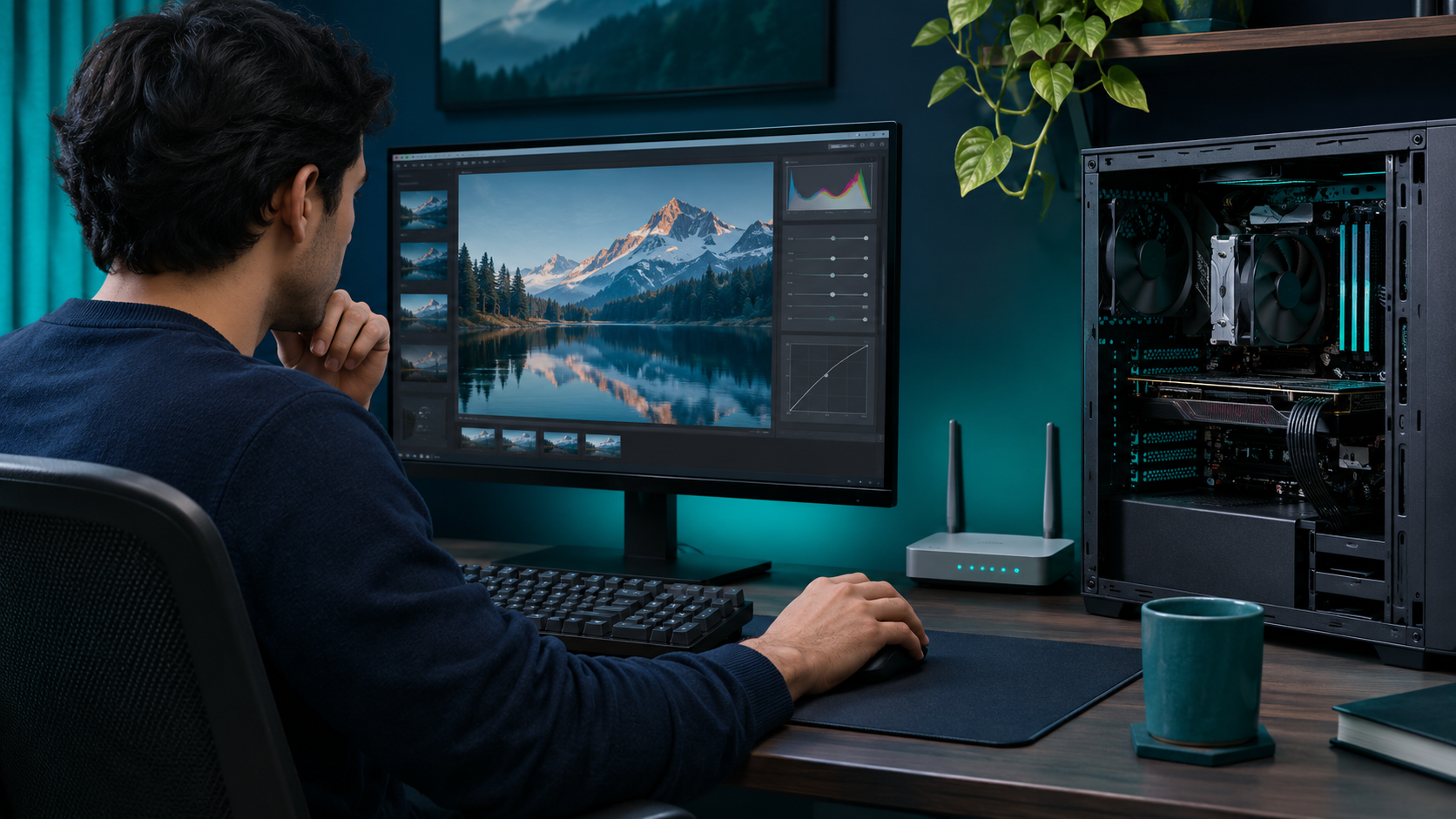
Imagine opening a photo from your computer and sharing it with a friend. First, the storage drive supplies the photo file and the instructions for the app. The operating system helps load the app and data into RAM. The CPU runs the app’s instructions, while the GPU helps produce the image you see on the display. Your mouse or touchpad sends input as you crop the picture.
When you save, the changed file goes back to storage. When you share it, the network adapter sends data through your local network and internet connection. The router helps move that traffic toward its destination. This is a simplified sequence; modern computers overlap many operations. Still, it shows why no single component deserves credit for the entire experience.
It also helps with troubleshooting. If the photo opens slowly, storage, memory, software, or the file itself may be involved. If the image looks wrong, check the display and graphics settings. If sharing fails, investigate the network path. Follow the stage where the task breaks down instead of replacing the most expensive part first.
Hardware vs. Software
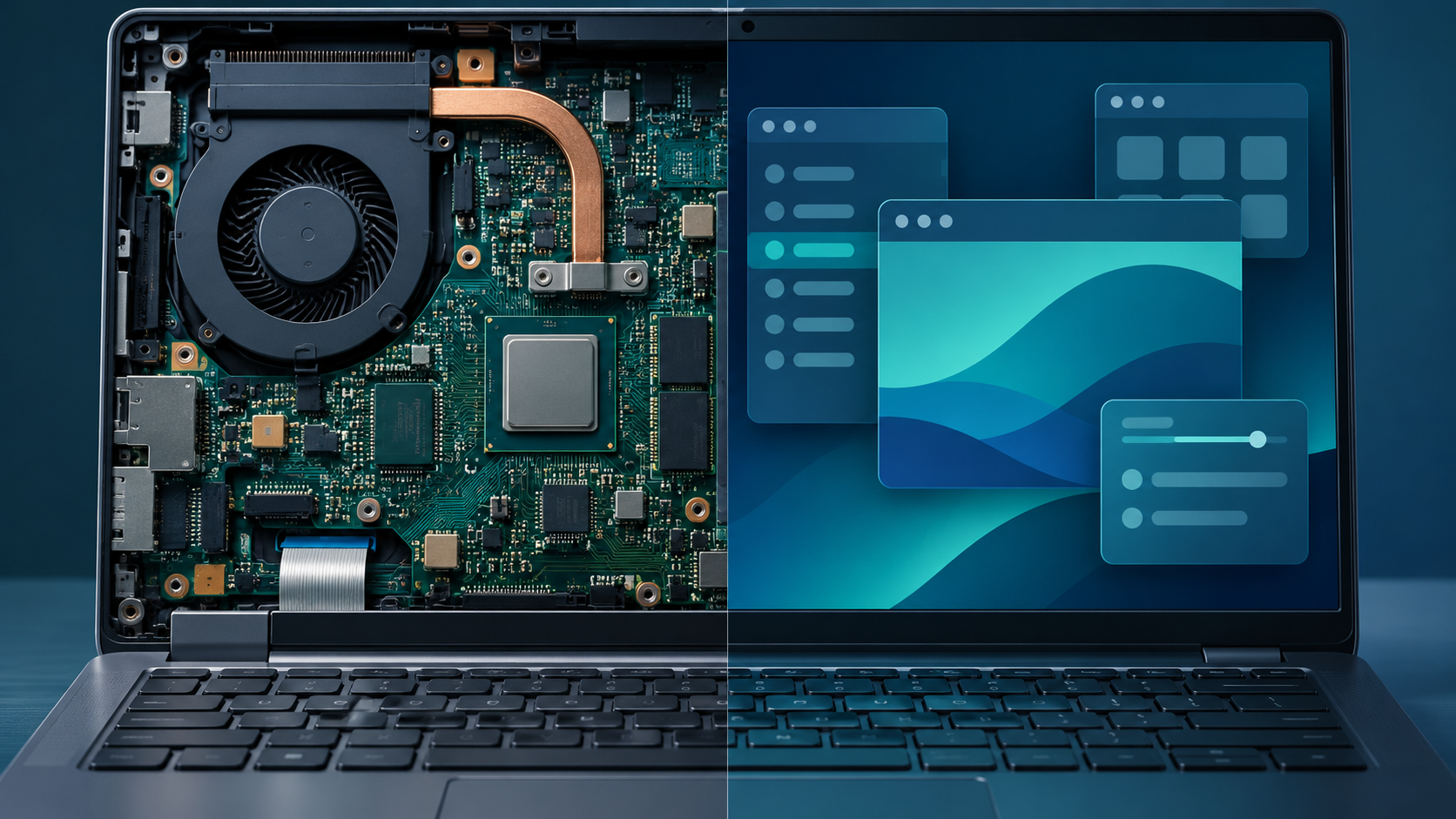
Hardware is the physical equipment. Software is the set of instructions that tells that equipment what to do. A keyboard is hardware; the word processor receiving its keystrokes is software. An SSD is hardware; the photo file stored on it is data. The operating system is software that helps programs use the processor, memory, storage, display, and connected devices.
The distinction matters because symptoms can look alike. A webcam may stop working because its cable is loose, its hardware has failed, an app lacks permission, or a driver is misbehaving. A printer can be powered on and mechanically sound while the computer sends it the wrong settings. Hardware and software faults often need different fixes.
Drivers are software that helps the operating system communicate with hardware. Firmware is software stored on or associated with a device that helps control its basic behavior. Neither becomes hardware simply because it is closely tied to a chip. For a fuller explanation of the boundary, see our hardware definition and examples.
Examples of Computer Hardware in Everyday Life

During a video call, a camera and microphone collect input, a processor handles the meeting app, a display and speakers deliver output, and a network adapter carries the conversation. In a classroom, a student types on a laptop, saves work to a drive, and presents it through a projector. At a store, a barcode scanner sends input to a point-of-sale computer, while a receipt printer produces output.
Even a simple web search uses more than one kind of hardware. The keyboard or touchscreen captures a request, the CPU and memory help the browser run, networking connects to the site, and the screen presents the result. These examples are useful because they connect component names to what people actually do with a computer.
How to Choose the Right Computer Hardware
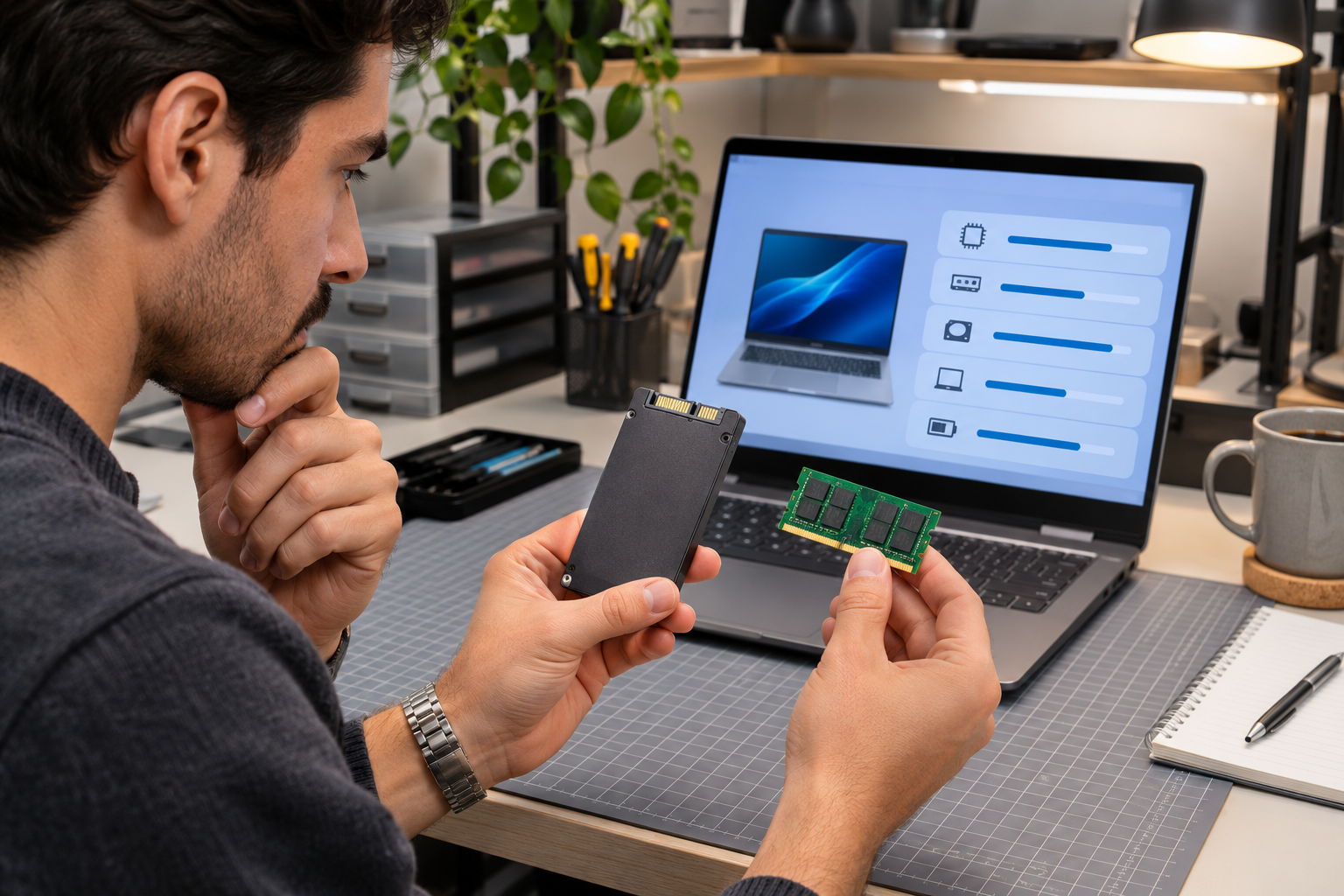
Begin with the task you want to improve. If you regularly run out of space, check storage capacity. If many open apps strain the machine, inspect memory use. If games or visual work are the issue, compare the graphics requirements of your actual software. If calls keep dropping, test the connection before shopping for a faster processor.
Next, confirm compatibility. For an internal upgrade, check the computer model, available slots, supported memory or drive types, physical space, power requirements, and cooling. For an external device, check ports, wireless standards, operating-system support, and any required adapters. Intel’s introduction to computer components is a useful primer, but your device maker’s specifications should decide whether a particular part fits.
Finally, compare the full cost and likely benefit. A practical upgrade may include an adapter, installation time, and a backup before changing a drive. If the existing computer cannot support the feature you need, an external device or a different machine may be the better purchase. The broad planning steps are in our Computer Hardware Guide.
Frequently Asked Questions
What are the five main types of computer hardware?
A useful functional grouping is input, output, processing, storage, and communication hardware. These are teaching categories rather than a rule that every device fits only one box. A touchscreen, for example, is both an input and an output device.
Is RAM a storage device?
RAM stores working information temporarily, so it is a form of memory. In everyday PC buying advice, “storage” usually means persistent devices such as SSDs and HDDs that retain files after shutdown. Keeping the two meanings separate makes upgrades easier to understand.
Is a router part of a computer?
A router is network hardware, but it is usually a separate device rather than a component inside your computer. The computer’s network adapter connects it to the network; the router directs traffic between networks. Home internet equipment may combine a router, modem, and wireless access point.
Can one device belong to more than one category?
Yes. A multifunction printer can scan pages as input and print pages as output. A touchscreen displays content and detects touch. Categories describe functions, so a device may have several roles.
What is the difference between internal and external hardware?
Internal components sit inside the computer’s enclosure, while external devices connect from outside it. Location does not determine function. Both an internal SSD and an external SSD can store files, although their connections, portability, and performance may differ.
Which hardware should I upgrade first?
Start with the bottleneck in your own tasks. Check available storage, memory use, temperatures, and the requirements of your software. Then verify what your computer supports. There is no universal first upgrade that helps every system.
Conclusion

Computer hardware makes more sense when you see the job each part does. Input gathers information, processors work on it, memory holds active data, storage keeps files, output presents results, and communication hardware connects systems. Internal and external describe where parts live, while software tells them what to do.
The next time a computer feels slow or a device stops responding, trace the task from input to result. You will have a better idea where to investigate and what, if anything, is worth upgrading. For the wider picture, continue with our complete computer hardware guide.

1 thought on “Types of Computer Hardware and What They Do”